Available today
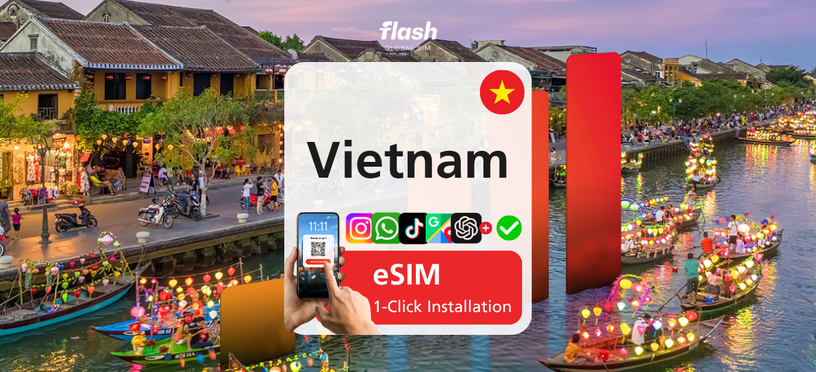
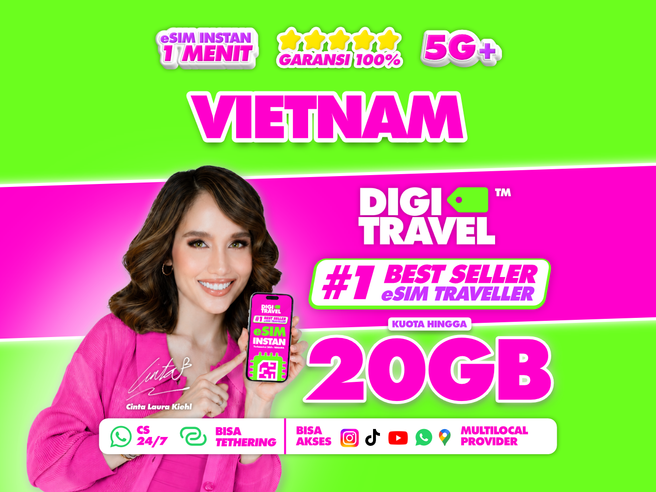
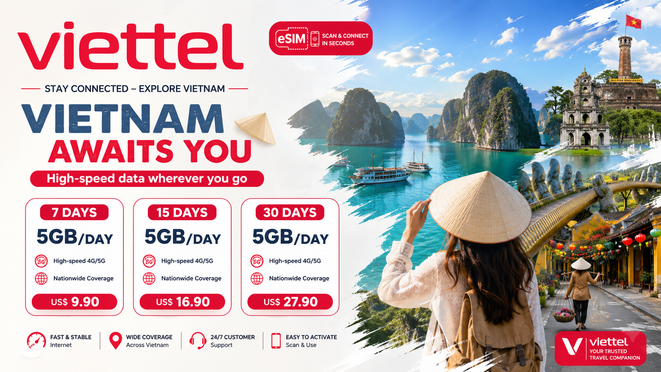
Vietnam Flash Global SIM 4G/5G Unlimited Data eSIM
US$ 3.38
 Point Guide
 AI Picks
Book tickets, tours, & activities worldwide with GlobalTix.
A data-only eSIM that gives you unlimited Vinaphone local 4G/LTE data while travelling in Vietnam. No need to swap SIM cards: scan the QR code you receive by email to install it, and connect as soon as you arrive in Vietnam. Choose 5, 7, 10 or 30 days to match your trip, with hotspot sharing supported.
Stay connected across Vietnam
with unlimited Vinaphone data
This data-only eSIM runs on the local network of Vietnamese carrier Vinaphone. Use unlimited data at 4G LTE speed during your plan, with 5G available depending on the area. Calls are not included, and you can choose from 5-, 7-, 10- and 30-day options.
Install with a QR code before you leave
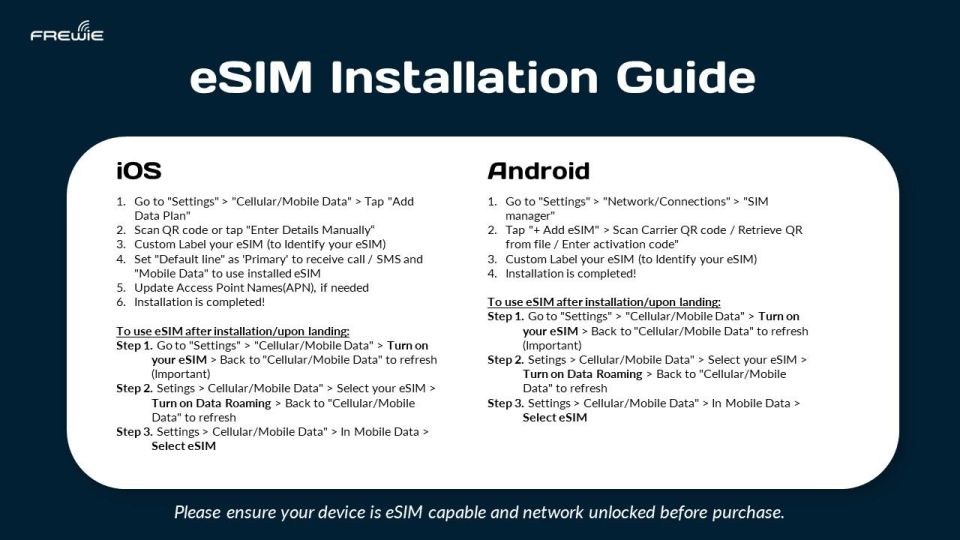
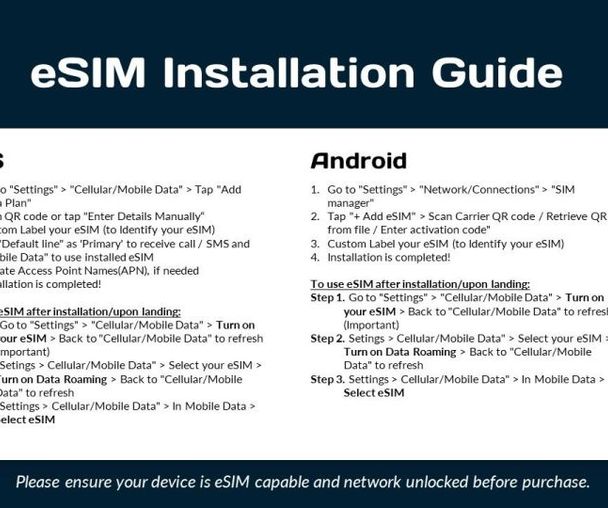
A voucher with the eSIM QR code and installation guide is emailed within 24 hours before your selected date. Display the QR code on another screen or print it in advance, then scan it with the device you want to use. Turn off data roaming on your current SIM before installation to avoid extra charges. If you install before departure, the status may show "Activating...", which is normal.
On arrival, set the eSIM
as your default data line
The eSIM only connects after you arrive in Vietnam. On arrival, set the eSIM as your default cellular data and switch airplane mode on and off a few times to start using data. Do not delete the installed eSIM, as it cannot be reinstalled.
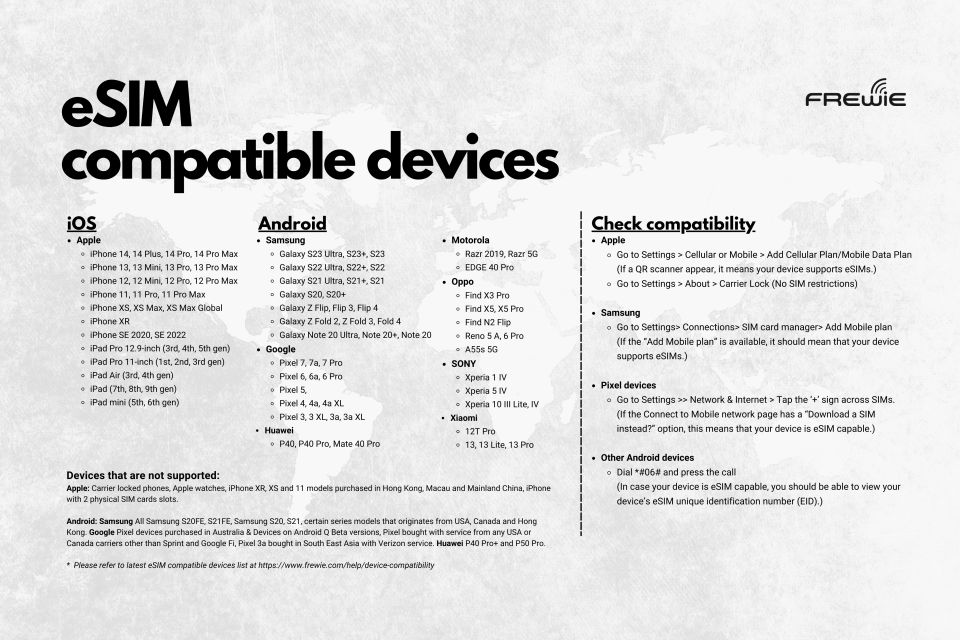
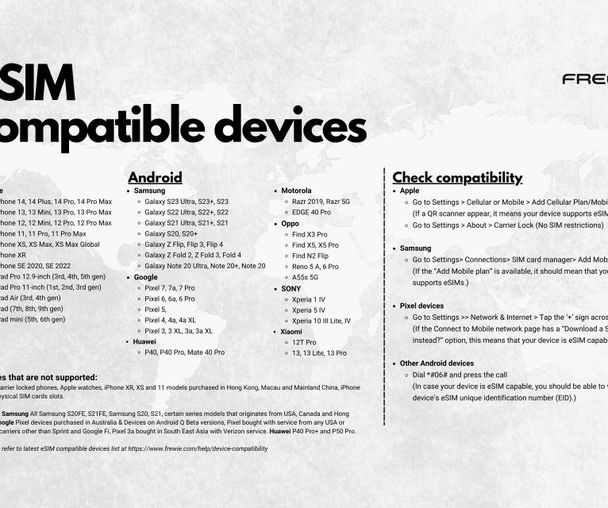
※ Before purchasing, make sure your device supports eSIM and is carrier-unlocked.
※ Speeds may vary with network congestion, and a minimum speed is not guaranteed when using a hotspot.
Validity: 5 days
Unlimited data, no calls
※ Validity varies by option (5, 7, 10 or 30 days).
 How To Use
Check your mobile voucher via email or the WAUG app.
Scan the eSIM QR code emailed to you within 24 hours before your selected date to install it.
Valid only on the specified date and time.
How to use:
Display the QR code on another screen or print it, then scan it with the device you want to use. On arrival in Vietnam, set the eSIM as your default cellular data and switch airplane mode on and off a few times. If you see "Invalid QR code" or "Unable to activate" while scanning, check whether the eSIM has already been added under Settings - Mobile Data.
※ All usage conditions are subject to the information stated on the voucher. Refunds or compensation will not be provided if you are unable to use the service due to failure to check the information.※ All usage conditions are subject to the information stated on the voucher. Refunds or compensation will not be provided if you are unable to use the service due to failure to check the information.
 What to Remember
 Point Guide




![[Vehicle Price] Hanoi Airport Pick-up & Drop-off Service (Hanoi / Ninh Binh / Ha Long Bay) - WAUG Exclusive](https://d2mgzmtdeipcjp.cloudfront.net/files/good/2025/08/01/17540115394611.jpg?s=656x372&t=outside)

![[Vehicle Price] Hanoi Airport Pick-up & Drop-off Service](https://d2mgzmtdeipcjp.cloudfront.net/files/good/2024/05/10/17153208041181.jpg?s=656x372&t=outside)